

When to use
How formulas work
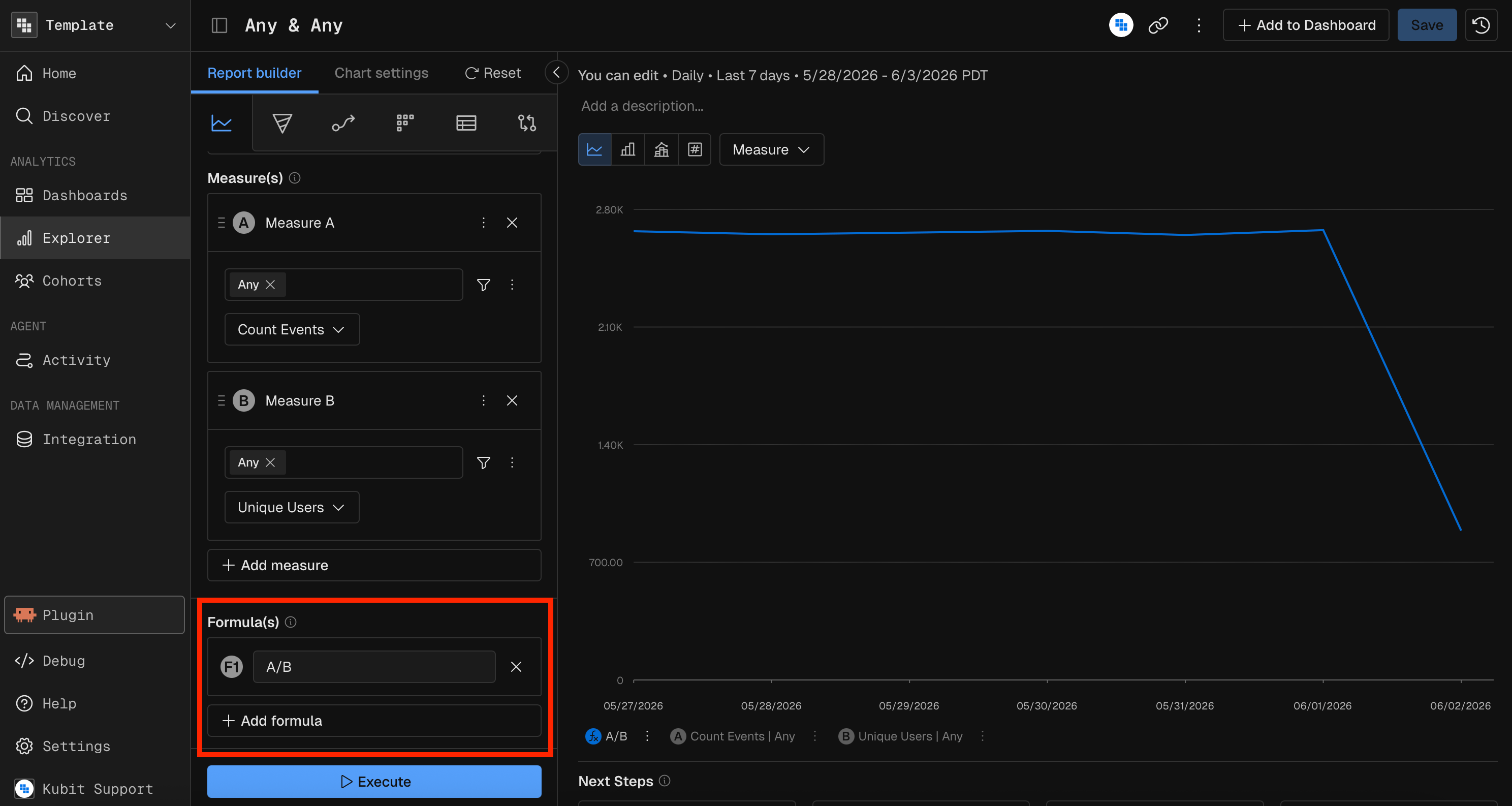
Each measure in a report gets a letter: the first measure is A, the second is B, the third is C, and so on. A formula uses these letters to define the calculation.
Formulas are case-insensitive. Typing
a/b is the same as A/B.
Supported operators
Limits
Availability: a formula can reference only measure letters (A, B, C and so on). It can’t reference another formula.
When a formula is required
Some chart types need a formula when the report has several measures (a compound measure), because the chart shows a single computed value.
Chart types lists the measures each chart type needs.
Division formulas
A formula with the/ operator changes two settings.
Validation
Kubit checks a formula as you type. If the expression is invalid, for example with unbalanced parentheses or a letter that isn’t a measure, an error message appears. The report doesn’t run until the formula is fixed.MCP prompt examples
“Show me the ratio of successful events to total events per day over the last 14 days”
“Create a line chart of (sum revenue minus sum refunds) divided by count distinct users, weekly, last 3 months”
Related
- Query report: build the measures a formula uses.
- Advanced Query analysis: build formulas from rolling measures.
- Group by and binning: the Overall toggle and breakdowns.