

When to use
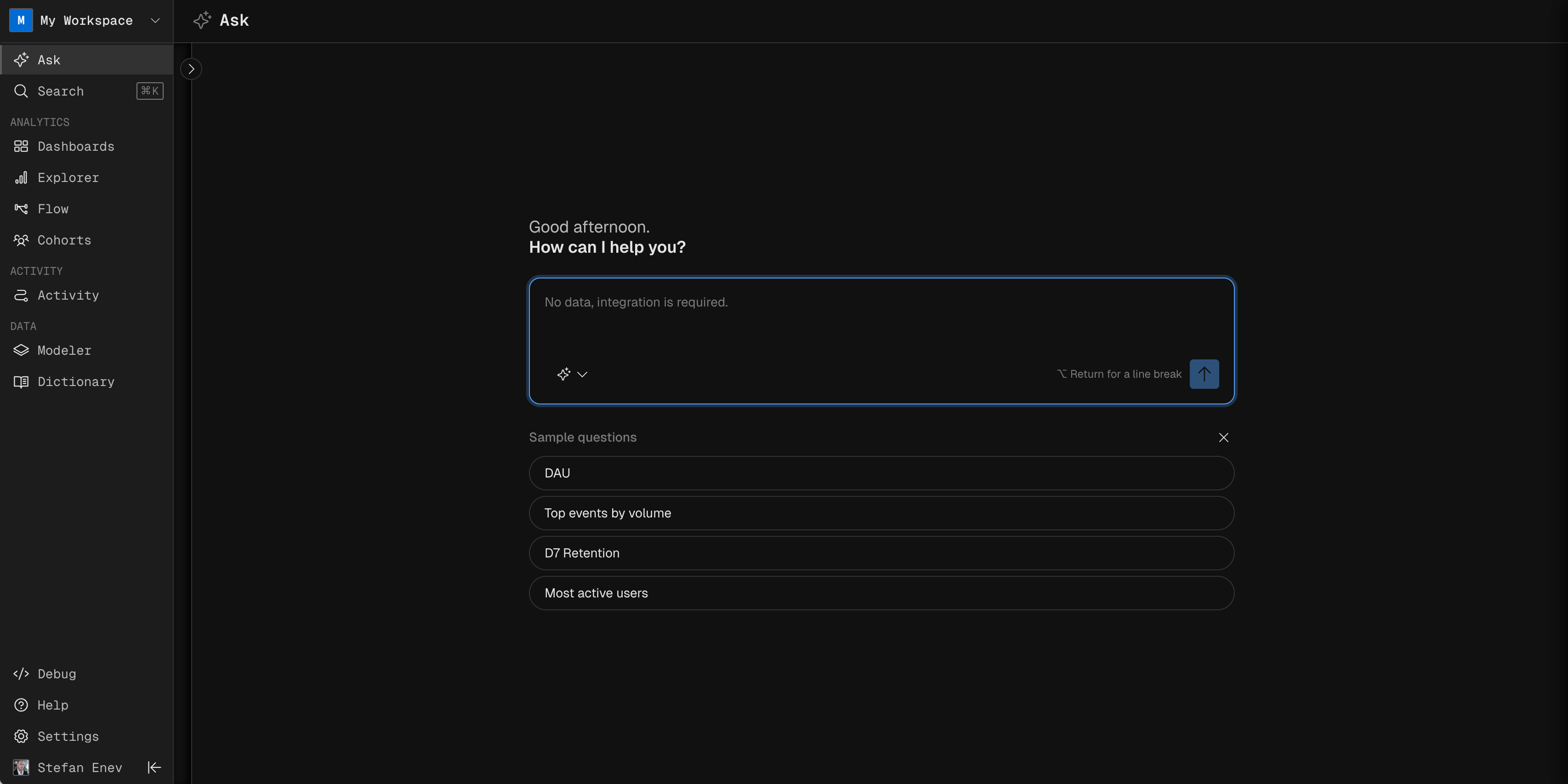
Open Lumos
Open Lumos from the chat box on the home screen, or from the left navigation. Type in the box at the bottom of the chat. Select the schema Lumos should use if your workspace has more than one. In the app on Nov 5, 2026, the chat opens from Ask in the left nav. New Chat in the top right starts a new chat.Ask for reports and cohorts
Lumos builds a report or cohort from a question and shows the result in the chat. Follow-up prompts change the last result, such as adding a group-by or a filter. The answer opens with a summary of the numbers, then Suggested next steps, then the report itself.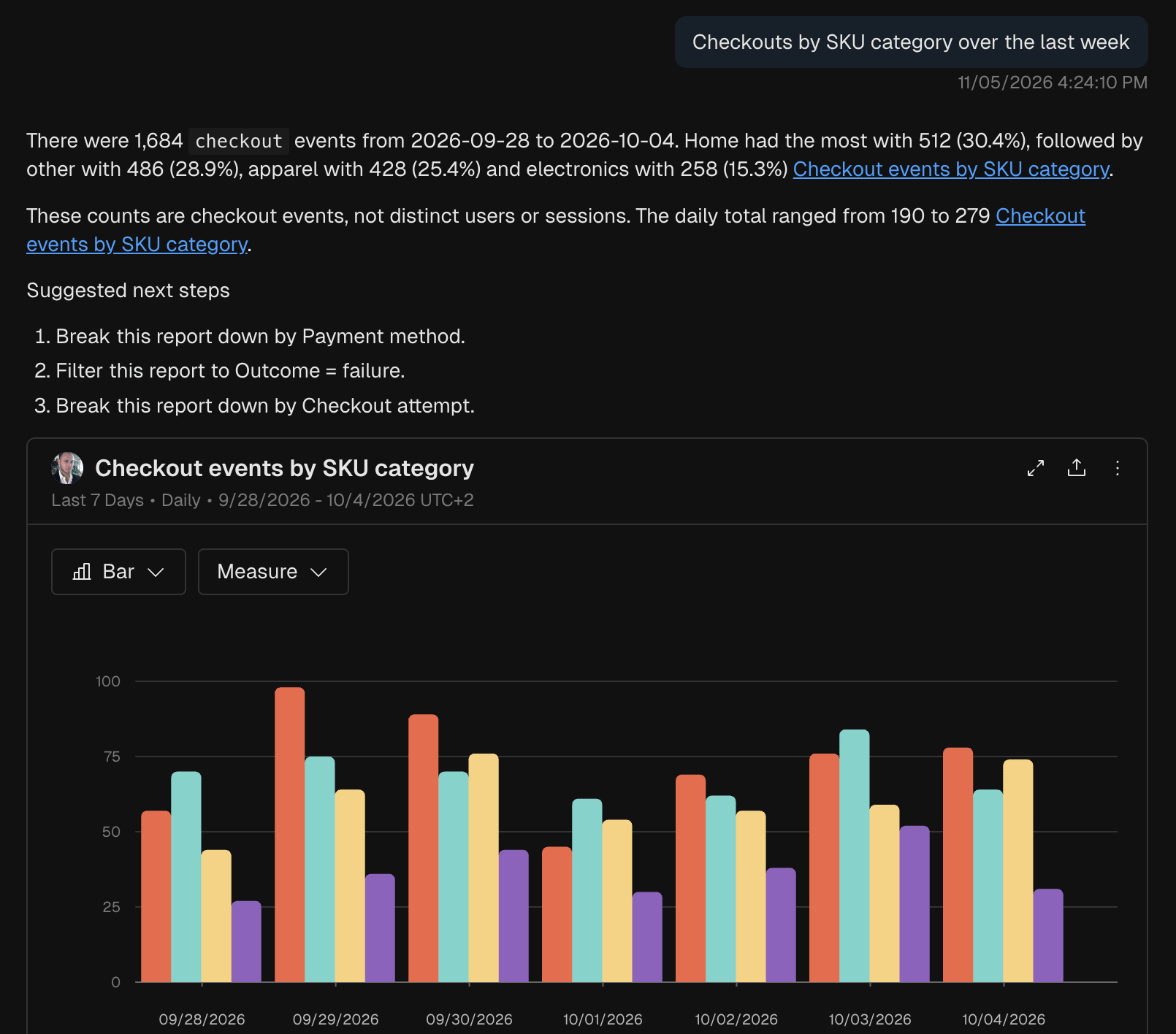
A good prompt names what to measure, the events, the date range and any group-by or filter. Lumos fills in the rest.
MCP prompt examples
“Show me daily active users by platform for the past 2 weeks”
“How many users abandoned onboarding after talking to the agent last week, compared to the week before? Break that down by primary intent.”
Agents
Lumos routes each question to an agent based on what you ask:Anomalies
Kubit marks anomalies on time series charts in Query reports and in Funnel reports in Conversion mode, with or without a group-by. There are three kinds:
Click an anomaly marker and choose View Anomaly to see its confidence, triggers and Z-score or MAD score. For daily reports, Kubit compares each point with 7, 14 and 30 day means and the same weekday’s mean.
MCP prompt examples
“Are there any anomalies in my daily active users report?”
“Why did project_created drop on Tuesday?”
Explain with AI
Explain with AI summarizes a result. By default the summary has four parts, shown here with their labels in the app. You can turn each off before it runs:
Your choice carries over to later questions in the same chat. A new chat resets it to all four parts.
Chat history and timeline
Kubit saves each chat in the left panel. Open its menu (three-dot icon) to rename or delete it. Click the arrow at the top left of the chat to show or hide Chat History. Kubit names each chat from its first question.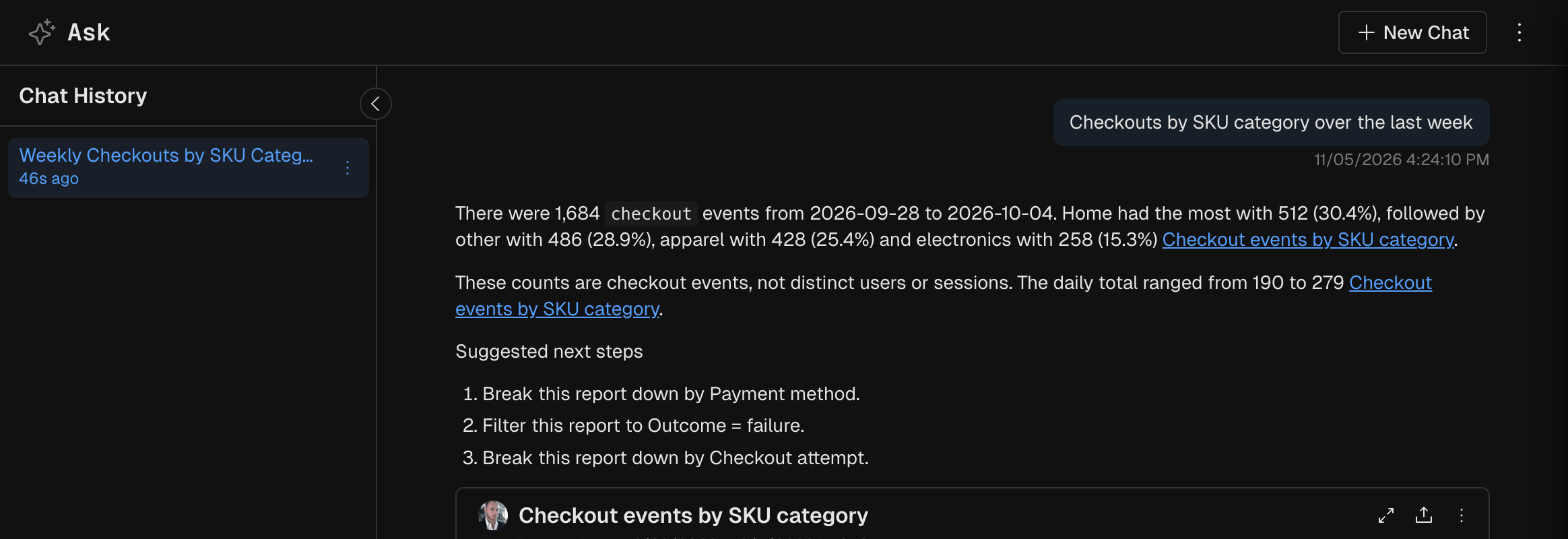
Click any point in either view to jump to that part of the chat.
Pre-built prompts
A new chat offers 3 pre-built prompts. Admins can edit them for everyone: click the pencil icon on a prompt, change the text, then click the check mark to save.Related
- Reports overview: the report types Lumos builds.
- Dashboards: save what you find.
- Set up Kubit with your coding agent: ask the same questions from Claude Code or Cursor through the Kubit MCP server.