

Before you start
- Permission in the Google Cloud project to enable APIs, create service accounts and grant IAM roles (for example Owner, or Service Account Admin plus Project IAM Admin)
- The ID and location of the dataset Kubit should query
Steps
Enable the BigQuery API
If the BigQuery API is already on for the project, skip this step.In the Google Cloud console, open APIs & Services and click Enable APIs and Services. Search for
BigQuery API, select it and click Enable.Create a service account
Open APIs & Services > Credentials and select your project if asked. Click Create Credentials > Service account.Name the account
Kubit and click Create. The Service account email shown is the Kubit service account email.Grant BigQuery roles
Give the Kubit service account these three roles on the project:
The same grants from the command line, with
<project-id> and the service account email replaced:Create a JSON key
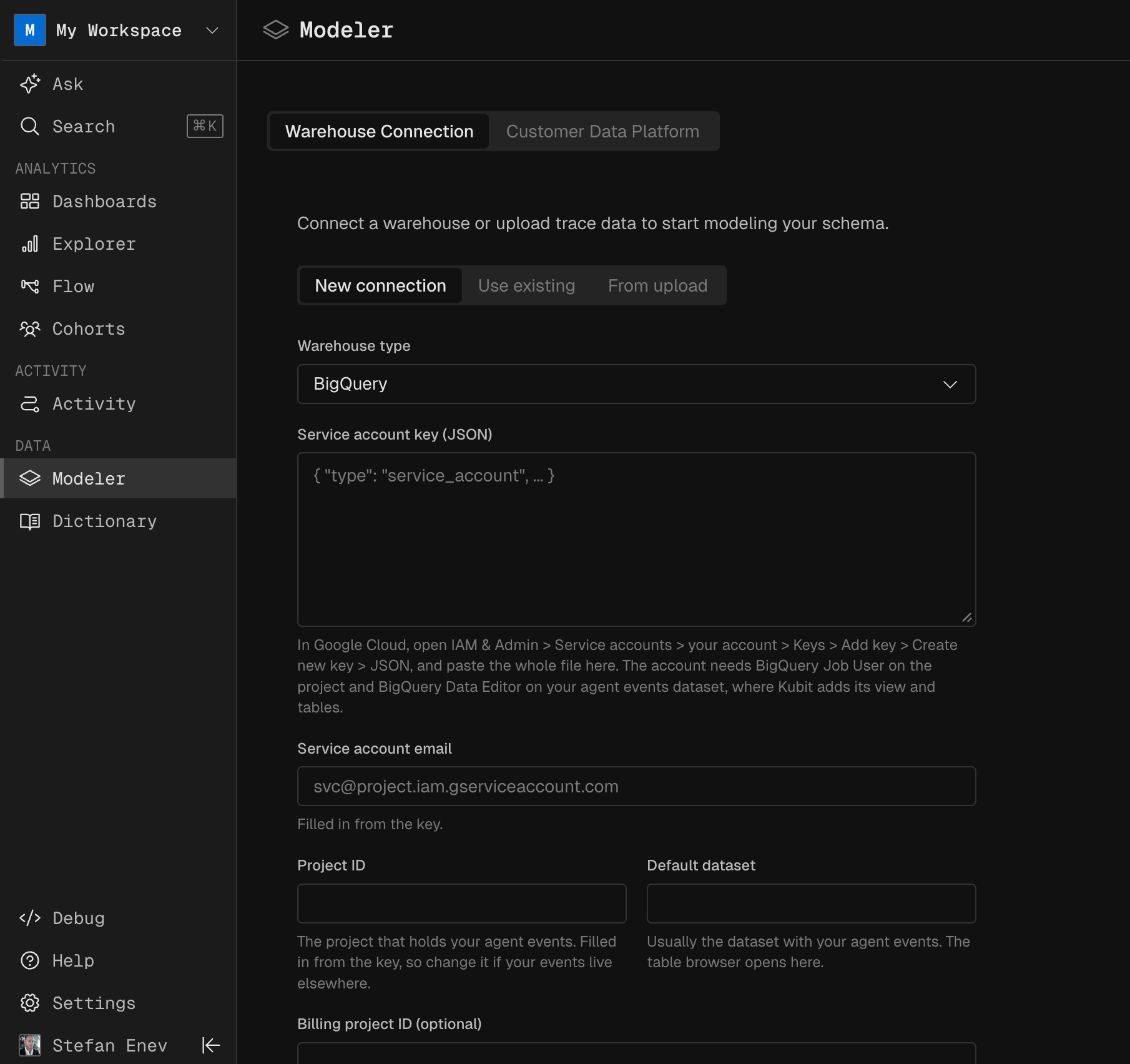
Select the Kubit service account, open Keys and click Add Key > Create new key. Choose JSON and click Create. A JSON private key downloads to your computer.
Verify
Check that the service account has all three roles. The output listsroles/bigquery.user, roles/bigquery.jobUser and roles/bigquery.dataViewer.
Next steps
- Bring your own warehouse: how Kubit queries your warehouse in place.
- Allow Kubit’s IP ranges: let Kubit through VPC Service Controls or a firewall.