

Before you start
- The invite email from Kubit. Its subject is
Welcome to Kubitand it opens withYou're Invited!. - A browser and device that support passkeys, such as a laptop with a fingerprint reader or a phone
- A workspace in your organization that already has data (agent traces, clickstream events or both). Your admin sets this up in Set up your organization.
Steps
Open the invite
The email reads
You've been invited by {inviter email} to join {organization} on Kubit. The invite doesn’t expire.Signed in to Kubit as someone else? Kubit signs you out first, then opens sign-in for the invited email.
Create your account
On Sign Up, check the Work Email and click Continue. Or click Continue with Google to use your Google account.Kubit emails you a code. On Check Your Inbox, type it into Verification Code and click Continue. No email? After 30 seconds, a Resend link appears.Sign-up doesn’t ask for your name. Add it later in Settings > Profile > Name.
Create a passkey
On Secure Your Account, click Create Passkey. The card reads
Sign in with biometrics or a security key—no password to remember.Your browser or device asks you to confirm with your fingerprint, face, PIN or security key. Keep the tab open and don’t refresh until setup finishes.Prefer a password? Click Create Password, then fill in Password and Confirm password. You can add a passkey later from Settings > Security.Join the organization
After you sign in, an Organization Invitation dialog opens. It reads
{inviter} has invited you to join {organization}., or You've been invited to join {organization}. when the inviter hasn’t set a name.Click Join. Kubit opens the organization’s workspace. Decline turns the invite down.Ask a question
The workspace opens on Ask, which greets you with 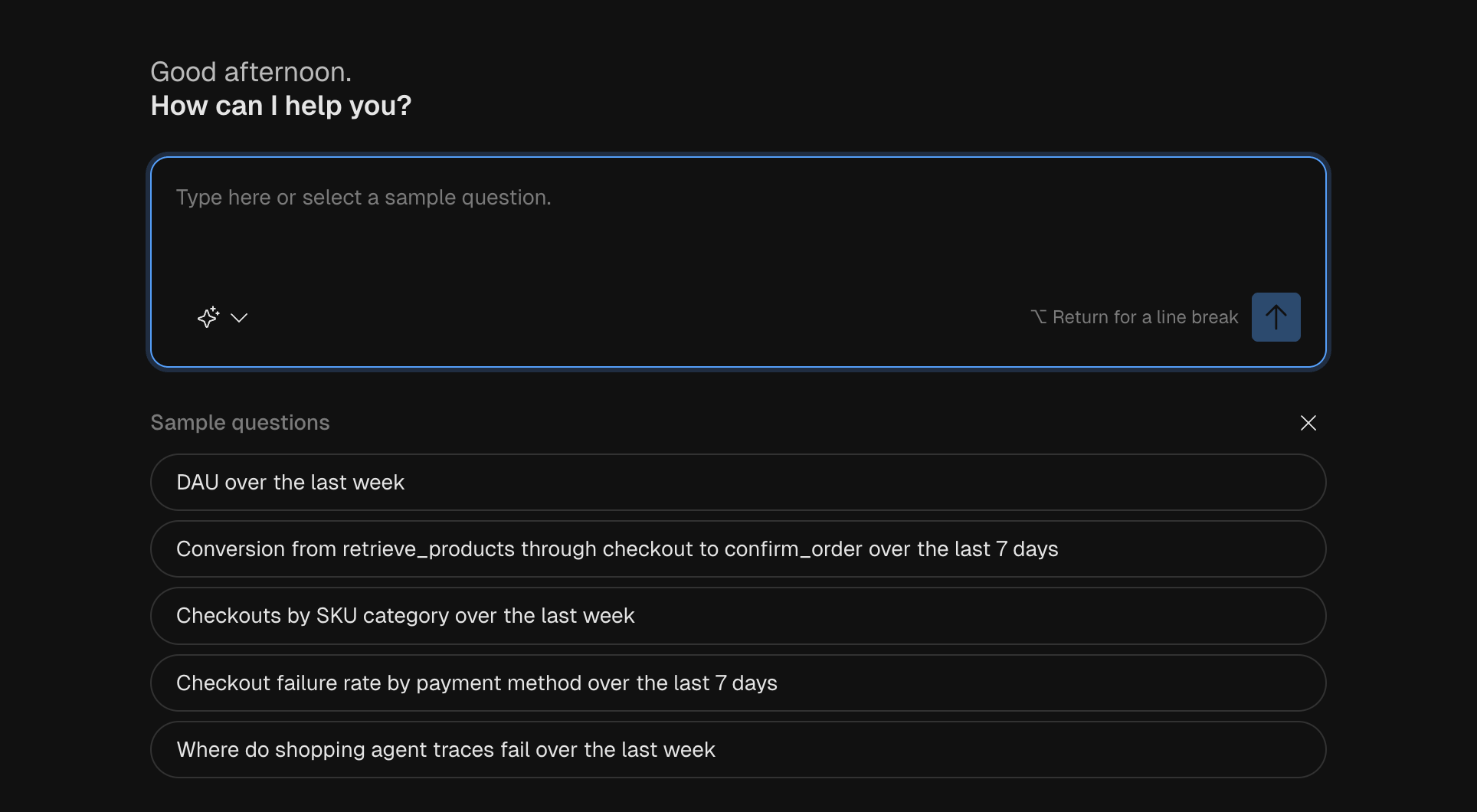
How can I help you?. On your first visit, a product tour opens first. Close it or follow it.“What’s the tool call failure rate by agent over the last 7 days?”For clickstream events:
“How many users completed checkout each day last week?”Under the prompt box, Sample questions offers a few to try until the workspace has 3 saved chats. Kubit builds a report and shows it in the Report panel.
Save the report
In the Report panel, click Open in Explorer. The report opens in a new browser tab.Click the report’s title and type a name. Then click Save. A toast reads
Report settings saved.Availability: Save needs the Member role or higher. A Viewer can ask questions and open reports but can’t save changes to them.Sign in with your passkey
A passkey signs you in without a password. On the Kubit sign-in page:- Enter your Work Email and click Continue. Or pick the passkey your browser offers in the email field, and skip to step 3.
- Click Continue with Passkey.
- Confirm on your device within 60 seconds.
Manage passkeys
Your passkeys are listed in Settings > Security under Passkeys. Each row shows the passkey’s name, This device or Security key, and the date it was created.Verify
Open Search in the left nav and choose the Reports filter. The report you saved is listed by name.If it fails
Next steps
- Concepts: what traces, spans and execution paths are, so you can ask sharper questions.
- Reports overview: the report types Kubit builds from your events.
- Set up with your coding agent: build the same reports from Claude Code with
/kubit-report.