

When to use
Pick the mode by the question you’re asking:
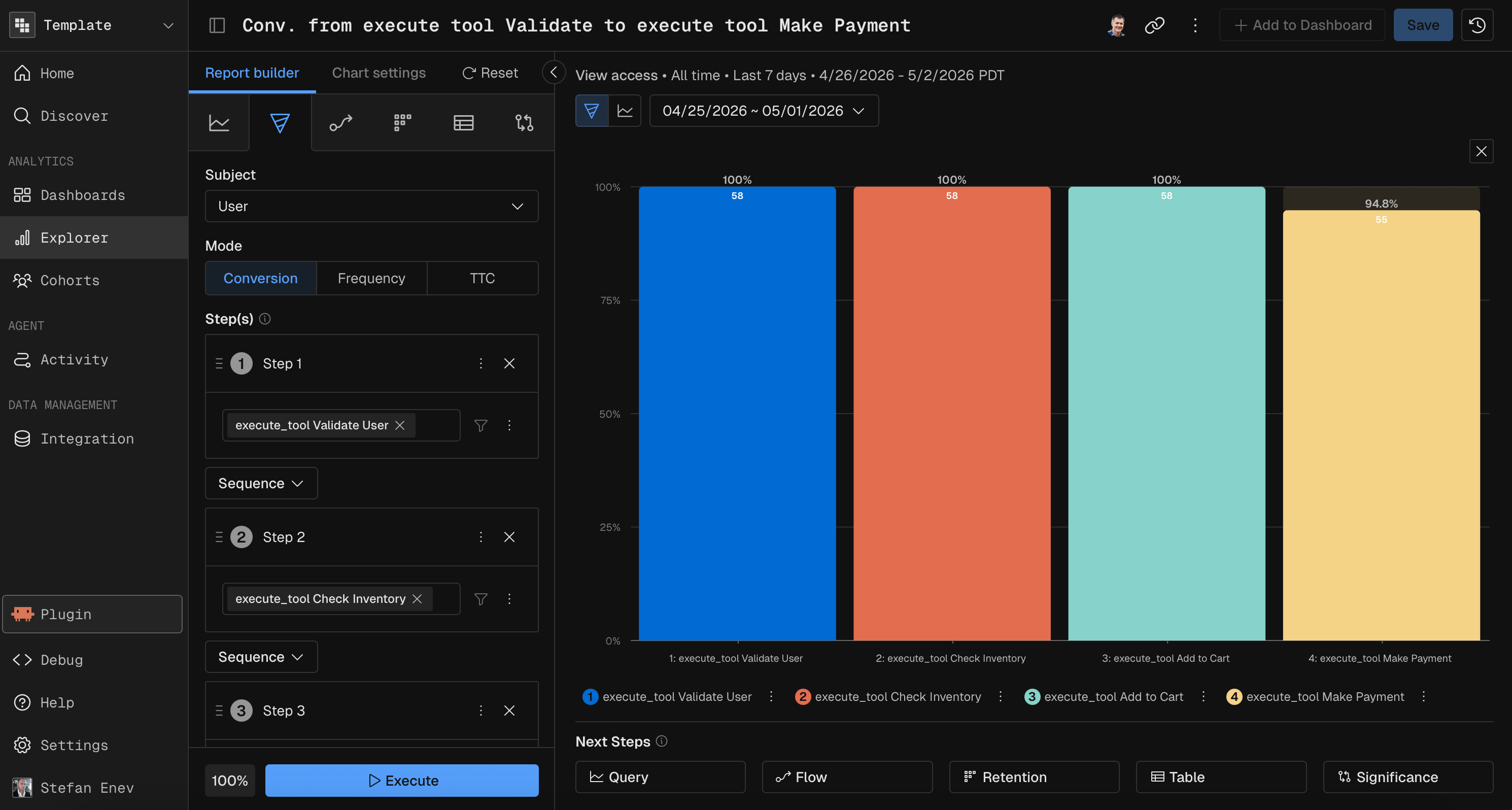
Subject
The subject is the entity that moves through the funnel. It sets the unit each step counts.How it works
Every step counts the distinct subjects that completed the step’s event.
Pick the subject that matches the level of detail you need. Use User to count the people who complete a workflow, or Trace to count the requests that make it through each stage.
Subject and step order
Each subject supports its own set of step orders (Sequence, Exact and Any, described in Step order). When you change the subject, the order options change to match.Modes
A Funnel report has three modes: Conversion, Frequency and Time to Convert (shown as TTC in the report builder).Conversion
Conversion mode answers “How do subjects convert through each step?”. It’s the default. The chart shows a bar per step with the percentage of subjects that entered the funnel and completed that step. You can show absolute numbers and conversion rates, either step to step or relative to the first step.Frequency
Frequency mode answers “How many times did subjects trigger an event before moving to the next step?”. The X axis shows frequency buckets, such as1 time, 2–5 times and 6+ times, instead of dates.
A funnel with N steps has N-1 transitions, and Frequency mode makes one measure per transition. You pick which one to show. Frequency mode lists its constraints.
Time to Convert
Time to Convert mode answers “How long does it take subjects to move between steps?”. The chart shows time buckets, with the average and median time to convert drawn on top. You can show one step transition, or the whole funnel from first step to last.
Time to Convert explains the buckets and constraints.
Mode quick reference
Steps
Steps are the events a subject has to complete, in order, to move through the funnel.Define a step
Step limits
A funnel always keeps at least 2 steps. With only 2 steps left, removing a step clears it instead of deleting it.
Step order
The order between each pair of steps sets how strictly the sequence is checked. Which orders you can pick depends on the subject.Duplicate a step
Duplicate Step copies a step, with its event conditions and filters, and inserts the copy right after it. It’s available while the funnel has fewer than 10 steps.Exclude events
An excluded event is a negative condition. If the subject triggers an excluded event between the previous step and this one, the subject drops out of the funnel at this step. For example: users who viewed a product and then purchased, without viewing the returns policy page in between.
Availability: excluded events work only on the first step, or when the order before the step is Sequence. Changing that order to Any or Exact removes the step’s excluded events.
Conversion window
A conversion window sets how long a subject has to complete a step after the previous one. A subject that takes longer counts as dropped off. Set it as a number and a time unit, such as24 hours, 7 days or 2 weeks. For example: users have to add to cart within 1 hour of viewing the product page.
Add, remove and reorder steps
Extended time
Extended time moves the end of the analysis window past the selected date range, so later steps have time to happen. Without it, a funnel counts only events inside the date range. A subject that starts the funnel near the end of the range may not have time to finish later steps, which makes conversion at later steps look lower than it is.How it works
Events that complete later steps count even when they happen after the date range ends. Only subjects that entered the funnel inside the date range are included. For example, with a date range of January 1 to 31 and 7 days of extended time, events through February 7 count toward completing the funnel, but only users who entered in January are counted. Funnel tips shows where to set it.Prompt Kubit through the MCP server
With the Kubit MCP server connected, you describe the steps and what you want to learn, and the server builds the funnel. A good funnel prompt names:MCP prompt examples
“Show me a funnel from sign up to first purchase over the last 30 days”
“Create a funnel for search → product view → add to cart → checkout, broken down by device type, last 14 days”
“What’s the average time to convert from prompt to tool call to response? Build a time-to-convert funnel with a 1-hour conversion window for the last quarter”
“Build a funnel from product view to purchase, excluding users who visited the returns page between steps, with 7 days extended time”
How the server reads a prompt
Related
- Funnel tips: duplicating steps, breakdown groups and extending the time window.
- Path report: find a path first, then turn it into a funnel.
- Reports overview: the other report types.