

When to use
Dictionary tabs
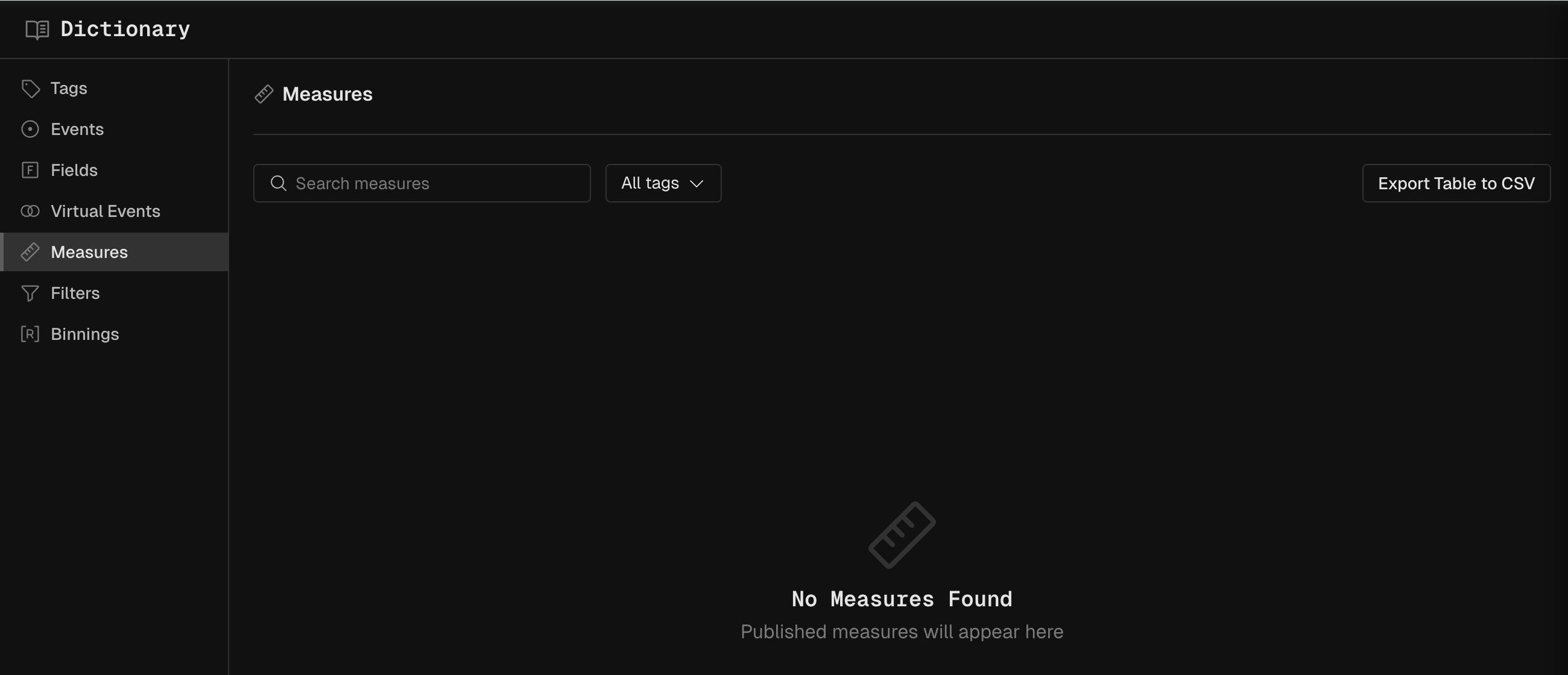
The Dictionary has seven tabs, listed in the left rail in this order.
Each tab has its own URL, such as
/dictionary/measures, so you can link to a tab directly. Published cohorts aren’t in the Dictionary. They have their own Cohort Dictionary on the Cohorts page.
Published components
A published component is a named, reusable part of a report that you saved from a report builder. The Dictionary only lists components. You can’t create one here, and you can’t change a published definition here.
Once published, a component appears in its Dictionary tab. A new component lands at the top, because the tabs sort by Updated At, newest first.
Availability: An AI assistant connected to the Kubit MCP server can publish a filter, measure, virtual event or binning from a report that has already run. A component it publishes is visible to the whole workspace. The MCP server can’t rename or delete it, so do that in the Dictionary. Kubit MCP Server lists what an assistant can do here.
Example Prompts
“Which measures are published in this workspace?”
“Is there a published filter for production traces? If not, publish the filter from my last report as Production traces only”
Component table
The Virtual Events, Measures, Filters and Binnings tabs share one table layout. Every published component of that type is listed on one page, with no pagination.
The default sort is Updated At, newest first. Kubit remembers the sort you pick for each tab. When the sort isn’t the default, a Reset Sort link appears next to the filters.
Search and filter
The search box filters the tab as you type, and its placeholder names the tab (Search measures). The tag filter next to it starts at All tags and lists only the tags applied to rows in that tab. Pick one to show only the components with that tag.
An empty tab shows No Measures Found (or the tab’s own type) with Published measures will appear here. When search or the tag filter hides every row, it says No measures match the current filters. instead.
Example Prompts
“List the published binnings and the field each one applies to”
“Which published filters keep only production traces?”
Rename and tag a component
Name and Description are edited in place. Click the cell, type, then press Enter or click away to save. Each edit is a rename in place and is added to the component’s revisions.
If the save fails, a toast shows the error, or
Failed to save.
To tag a component, click + in its Tags cell (or the pencil when it already has tags) and pick tags. Each pick applies right away. Type a new name in the picker to create a tag. Tag changes don’t add a revision.
Availability: The Definition column is read-only. A published definition can’t be edited from the Dictionary. To change one, open it in a report, change it there and publish it again under the same name.
Availability: Renaming, describing and tagging a published component happen in the Dictionary only. The Kubit MCP server has no tools for them.
Revisions
Revisions show every version of a published component. Click the clock button (Revisions) at the end of a row to open them. Only one Revisions panel is open at a time. Each revision shows the name, a version number, the edit date and the comment, if there is one. The current version is highlighted. Click the info icon on a revision to see that version’s definition, with Show in Report, which opens the definition in a Query report.
Availability: Revisions open in the Dictionary only. The Kubit MCP server can’t read a component’s revisions.
Export to CSV
Export Table to CSV downloads the current tab as a CSV file named after it, such asMeasures-Dictionary. The export keeps the tab’s search and tag filter.
The CSV has no definition column. When the tab has no rows, the export stops with
No measures to export to CSV (or the tab’s own type).
Delete a component
Delete removes a published component from the workspace. Open the row’s ⋮ menu and click Delete Measure (or Delete Filter, Delete Binning, Delete Virtual Event). The Delete Confirmation dialog asks:Measure deleted. Kubit has no way to restore a deleted component.
Availability: Deleting a published component happens in the Dictionary only. The Kubit MCP server can’t delete one.
Kubit MCP Server
The Kubit MCP server reads the Dictionary and publishes new components, and it can’t edit or delete anything in it. MCP tools documents each tool.Permissions
Your workspace role decides what you can change in the Dictionary. Everyone with access to the workspace can browse, search, sort, open revisions and export.
Controls you can’t use stay visible but disabled. Hover one to see the role it needs, in the form
Requires Workspace permission: <feature> · <action> (<role> or above). Your workspace role: <role>.
Example workspaces, such as the demo workspace, are read-only for everyone. Their controls show Modifications are not permitted in the example workspace.
Related
- Tags, Events and Fields: tag the workspace’s events and fields, set the Event Filter and Auto Grouping, and refresh event values.
- Query: build the reports you publish virtual events and measures from.
- Group By and Binning: set up and publish a binning.
- Cohorts: publish cohorts and manage them in the Cohort Dictionary.