

/dictionary/tags, /dictionary/events and /dictionary/fields open a tab directly.
When to use
Tags
A tag is a label you apply to events, fields and published components to group them. Tags are either manual or automatic.
The Tags tab lists every tag in the workspace, 25 per page.
Search the tab with Search tags, and filter it with All types, Manual or Automatic.
Add a tag
Click Add Tag. In the Add tag dialog, enter a Name and, optionally, a Description, then click Add Tag. A tag name must be unique in the workspace. A duplicate name shows an error under the field. The dialog has no color option. Change the color in the table afterwards.Delete a tag
Open the tag’s actions menu and click Delete Tag. The Delete tag dialog warns:Automatic tags are generated from your grouping fields and cannot be deleted. Remove the grouping field instead (see Auto Grouping).
Availability: An AI assistant connected to the Kubit MCP server can list the workspace’s event tags, but it can’t create, apply, rename or delete a tag. Tag in the Dictionary.
Example Prompts
“Which event tags does this workspace have?”
“Show a Path report of agent runs with events collapsed by the shopping-flow tag”
Events
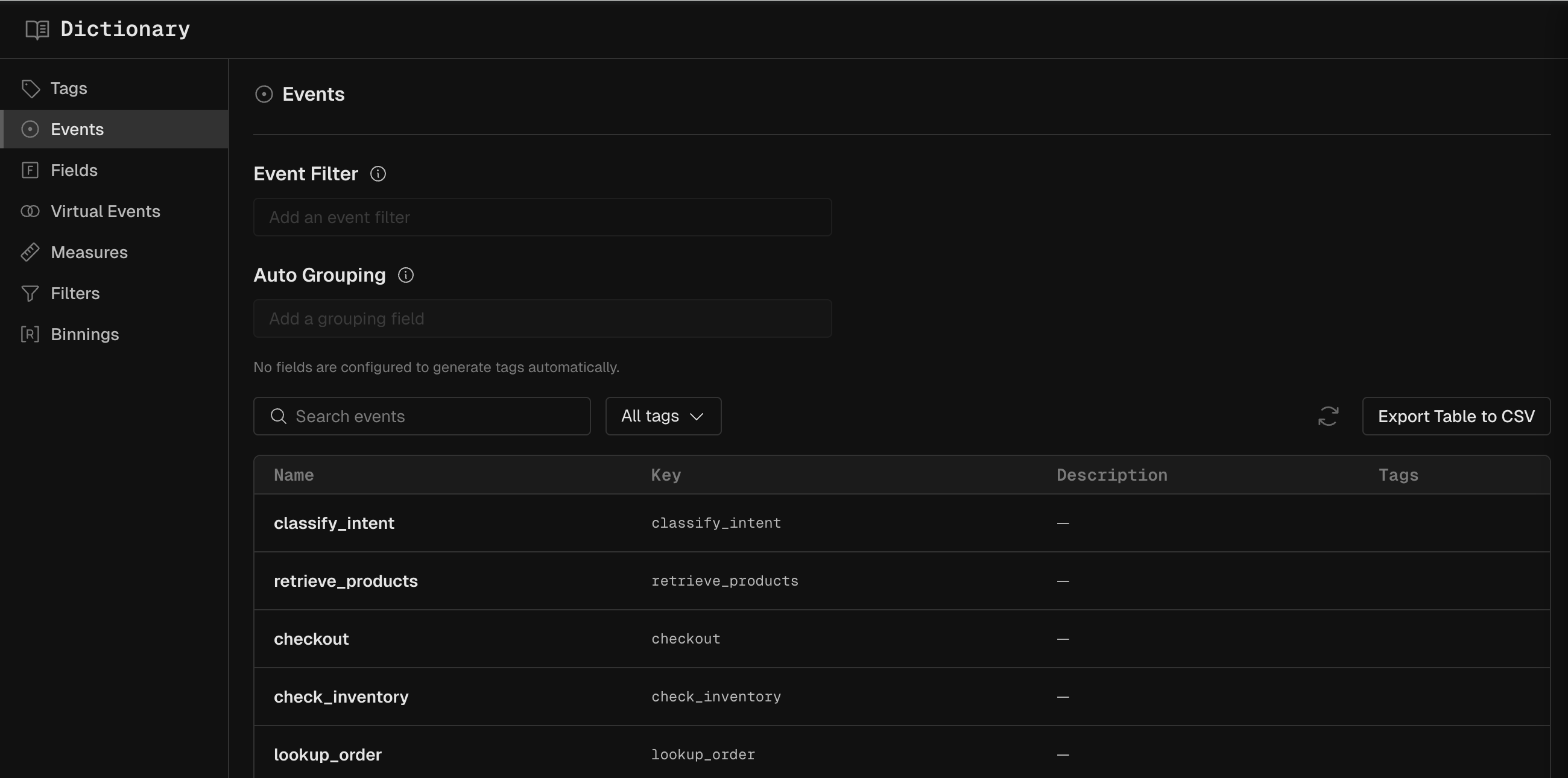
The Events tab lists the events from your data source, 25 per page.
Search events matches the name, key and description. The tag filter shows only events with one tag. Above the table are the Event Filter and Auto Grouping settings, and next to Export Table to CSV is the Refresh event values button.
To tag one event, click Edit tags in its Tags cell and pick tags. Automatic tags in the cell show
Applied automatically by grouping on <field> on hover and can’t be removed there. To tag many events at once, see Bulk tagging.
Availability: The Kubit MCP server lists events and their tags, and it can’t tag, disable or rename an event or edit its description.
Example Prompts
“Which events are tagged shopping-flow?”
“List the events tagged shopping-flow and how many traces had each one last week”
Fields
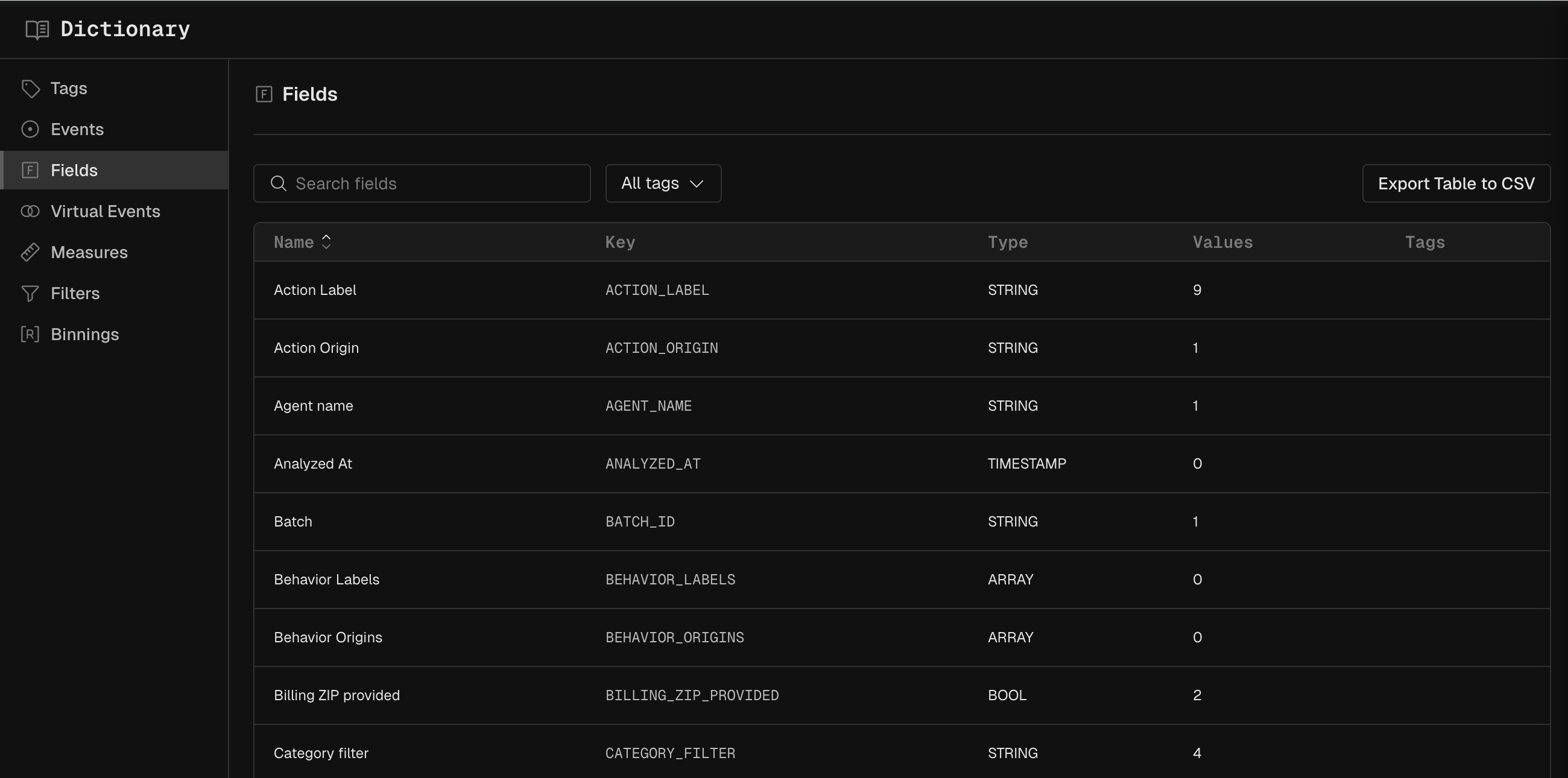
The Fields tab lists the fields from your data source, sorted by name, with nested fields under their parent.
Name, Key, Type and Values are sortable. Search fields matches the name, key and description.
Availability: The Fields tab shows at most 500 fields. A larger schema shows
Showing the first 500 fields by name. Some fields may not be listed.
Availability: The Kubit MCP server describes a field (type, description and most frequent values) with explain_field, and finds the field that holds a value. It can’t tag a field.
Example Prompts
“What type is the AGENT_NAME field, and what values does it have?”
“Which field holds the value search_products, and how many traces had it last week?”
Bulk tagging
Bulk tagging adds or removes one manual tag on many events or fields at once. In Events or Fields, tick the rows’ checkboxes. A bar shows how many rows are selected, with a tag picker and three actions.
Only manual tags can be picked. The checkboxes appear only for roles that can tag (see Permissions).
Event Filter
The Event Filter limits which events are available in the event selector when you build reports. Set it at the top of the Events tab with Add an event filter. Only fields on the event fact table can be used in it. Changing the filter forces a refresh of the workspace’s event values. Clear Filter removes it, after the Clear event filter? dialog warns that clearing forces a refresh of your event values and regenerates the automatic tags.Auto Grouping
Auto Grouping turns the values of an event field into automatic tags. Add a field with Add a grouping field, such as an event’s source, family or type, and Kubit tags each event with the value of that field. Only fields on the event fact table can be used, and each field can be added once. While Kubit applies the tags, the tables showUpdating tags and events… and tag editing is locked. When it’s done, a toast says Tags and events updated.
To stop grouping on a field, remove it. The Remove grouping field? dialog explains that the automatic tags generated from that field will no longer be applied to your events, and that manual tags aren’t affected. Click Remove Field.
Availability: The Event Filter, Auto Grouping and event value refreshes are set in the Dictionary only. The Kubit MCP server has no tools for them.
Refresh event values
Refresh event values reloads the workspace’s event values from your warehouse. Click the refresh button next to Export Table to CSV on the Events tab, then click Refresh values. Its tooltip shows when the values were last refreshed. Tick Purge Cache before refreshing to drop values that no longer exist in the warehouse. The Purge cache? dialog warns that those values won’t come back until the next successful refresh. Click Refresh and Purge.Export to CSV
Export Table to CSV downloads the current tab with its search and filters applied, across all pages.
The Dictionary exports only. It has no CSV import.
Permissions
Your workspace role decides what you can change on these tabs. Everyone with access to the workspace can browse, search and export.
Disabled controls show the role they need on hover. Example workspaces, such as the demo workspace, are read-only for everyone.
Related
- Dictionary: browse, rename and delete published virtual events, measures, filters and binnings.
- Path: collapse events by tag in a path.
- Modeler: map warehouse tables to the events and fields these tabs list.